
There are two types of Time Entry grids depending on the classification of an employee:
The purpose of Salaried time-labor entry is to maintain employee attendance and labor data. The Salaried Time Entry grid displays the days of the week and enables entering the amount of time spent each day on each Charge Code. In this grid, you can enter and view the time applied to particular Charge Codes across a range of days within the selected Pay Period.
The total work time for each day is indicated at the bottom of the grid, and the total work time for each activity is available on that row in the Total Hours column.
The hour entry fields will accept time in several formats (e.g., 0.00, 0:00).
If the user exceeds the maximum hours allowed per day, a red framed exception will appear around the day in question.
A Salaried time-labor entry worker uses the system from a PC only and enters hours at the end of a Pay Period or throughout the Pay Period.
The available columns in the grid are:
| Attribute | Description |
| Signed off/approved | This column has a  if the record is signed off on and a
  if the
record is approved. If the record has neither of these statuses,
this column remains blank. if the
record is approved. If the record has neither of these statuses,
this column remains blank. |
| Earnings Code* | The Earn Code against which the hours to the right are reported (usually REG). |
| Type* | The labor type against which the hours to the right are reported. For details, see Charge Code. |
| Charge Code* | The Charge Code against which the hours to the right are reported. For details, see Charge Code. |
| Mon* | The total hours reported for Monday for this row. |
| Tue* | The total hours reported for Tuesday for this row. |
| Wed* | The total hours reported for Wednesday for this row. |
| Thu* | The total hours reported for Thursday for this row. |
| Fri* | The total hours reported for Friday for this row. |
| Sat* | The total hours reported for Saturday for this row. |
| Sun* | The total hours reported for Sunday for this row. |
| Total | The total of all the days of the week for this row. |
| Earnings Description | The read-only description of the Earn Code. |
| Operation* | The Operation for the Charge Code entered for orders of the Direct type. |
| Occupation Code | The Occupation Code for this row. |
| Reason Code | The Reason Code for this row. |
| Labor Code | An attribute of the labor record that is user-definable and can be used to further break down labor reporting. |
| Shift Period* | The Work Shift/Work Period with which this row is associated.
The Work Shift/Work Period assignments in Time Manager persisted
in ATTENDANCE are populated from one of the following sources
in the specified order:
|
| Work Center | The Work Center with which this row is associated. |
| Department | The Department with which this row is associated. |
| Facility | The Facility with which this row is associated. |
| Comment | A comment relating to this row. |
Attributes marked with (*) are required.
The purpose of Hourly time entry is to maintain Hourly employee attendance data. Generally, an employee clocks in and clocks out using a device and a Supervisor would review the employee edits. The Hourly Time Entry grid displays the days of the week chronologically along with the Clock In and Clock Out times. This allows for the quick review, approval, and edit of each day.
The work time for the Pay Period under each pay category is totaled on the bottom of the grid. An hourly worker will usually use the system from a transitional view only, performing the Clock In, Clock Out, start, and stop transactions, which are stored with the time stops used to compute hours and pay.
An employee can confirm attendance records by using the Sign Off function (for details, see the Signed off/approved column description below).
After an attendance record has been signed off on by an employee or has been approved by the Supervisor, clicking the Pay Day column will invoke a pop-up window with sign-off/approval exceptions for the selected time record and/or for the whole Pay Period:
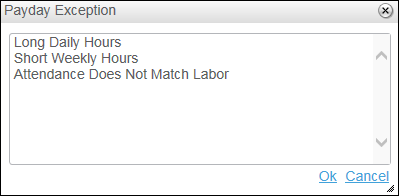
When any changes are made within the Time Manager attendance records that have been approved or signed off on, you can configure in Central Configuration whether all of the records or only the ones affected lose their statuses (for details on Central Configuration, refer to the Time and Labor Implementation Guide).

The available columns in the grid are:
| Attribute | Description |
| Signed off/approved | This column has a
if the record is signed off on and a if the
record is approved. If the record has neither of these statuses,
this column remains blank. |
| Pay Day* | The computed Payday for the attendance row. This is usually the same as the Day column. However, for a Third Shift Employee, the Payday will be the date following the day when the "Third shift prior to Payroll day" check box is checked in the configuration for Pay Rules. |
| Day* | The date of the Start Time. The Day may be different than the computed Pay Day when the Work Shift/Work Period crosses midnight (as in, for Third Shift Employees). |
| Earnings Code* | The Earn Code against which the hours to the right are reported (usually REG). |
| Start Time* | The start time for this row, used to compute hours in accordance with the Pay Rule and Work Shift/Work Period definitions. |
| End Time* | The end time for this row, used to compute hours in accordance with the Pay Rule and Work Shift/Work Period definitions. |
| Adjusted Start Time*/Actual Start Time* |
This column can contain the actual or adjusted start time. The name of the column changes based on the EditAdjustedTimes setting in Central Configuration Documentation. The default setting displays the adjusted start time, which is a computed value. For example, your scheduled Start Time is 7:00 AM, you have a 10-minute rounding early Start Time window, and you actually clock in at 6:55 AM. The Start Time column will display 6:55 AM, and the read-only Adjusted Start Time column will display 7:00 AM. The Adjusted Start Time, rather than Start Time, is used for End of Day validation. |
| Adjusted End Time*/Actual End Time* | This column can contain the actual or adjusted end time. The name of the column changes based on the EditAdjustedTimes setting in Central Configuration Documentation. The default setting displays the adjusted end time, which is a computed value. For example, your scheduled End Time is 3:30 PM, you have a 10-minute rounding late End Time window, and you actually clock out at 3:36 PM. The End Time column will display 3:36 PM, and the read-only Adjusted End Time column will display 3:30 PM. |
| Double Time | The hours computed as Double Time. Usually these are hours in excess of 12.0 per day or 48.0 per week. |
| Misc Time | The hours spent on an Earn Code that does not use a Start Time and End Time. Used to enter hours for non-regular Earn Codes (e.g., SICK). |
| Labor Total Time | The total labor hours linked to this attendance row. |
| Earnings Description | The description of the Earn Code. |
| Regular | The hours computed as Regular (usually 8.0 hours, which is a normal shift). |
| Overtime | The hours computed as Overtime (as in, beyond Regular working hours). Usually these are hours in excess of 8.0 per day or 40.0 per week. |
| Department | The Department with which this row is associated. |
| Facility | The Facility with which this row is associated. |
| Comment | A comment for this row. |
| Pay Rule | The Pay Rule with which this row is associated. |
| Shift Period* | The Work Shift/Work Period with which this row is associated.
The Work Shift/Work Period assignments in Time Manager persisted
in ATTENDANCE are populated from one of the following sources
in the specified order:
|
| Work Center | The Work Center with which this row is associated. |
| Elapsed Hours | This attribute is used to report elapsed hours with no Start Time or Stop Time. This can be done for Regular attendance by removing the default Start Time and End Time values. This is always the case for non-Regular records (e.g., holiday and sick time). This attribute is also used to report an override value while still persisting the Start Time and End Time. |
| Call In | This flag specifies that this attendance record is for a Call In event. Special Pay Rules are applied to such a row, as defined by the Call In pay settings. For details, refer to Call In Pay. |
| Calculation Overridden | This flag specifies if you intend to override the system computations for this row. |
Columns with (*) are required.