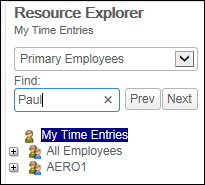
On the Resource Explorer screen, Supervisors are able to access information concerning specific employees.
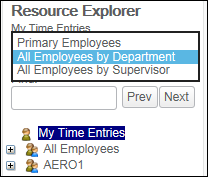
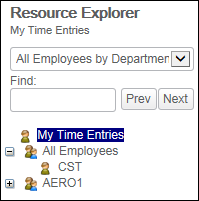
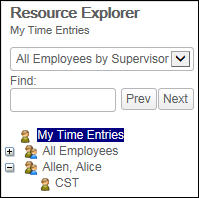
By default, Time Manager displays only primary employees (unless there are no primary employees for the Supervisor who is logged in). At any point, the Supervisor may toggle between Primary Employees, All Employees by Department, or All Employees by Supervisor through the use of the drop-down menu:
In the employee navigation tree, you will find:
Employees may be designated as read-only employees, in which case the
employee is displayed to the Supervisor but no edits are permitted. A
read-only employee is displayed as  , whereas
full access is indicated by
, whereas
full access is indicated by  .
.
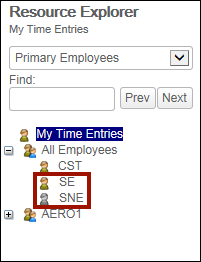
The Find field allows you to type in a partial name or an employee number to find the required employee. Press Prev or Next to search up and down from the current selection in the employee list.