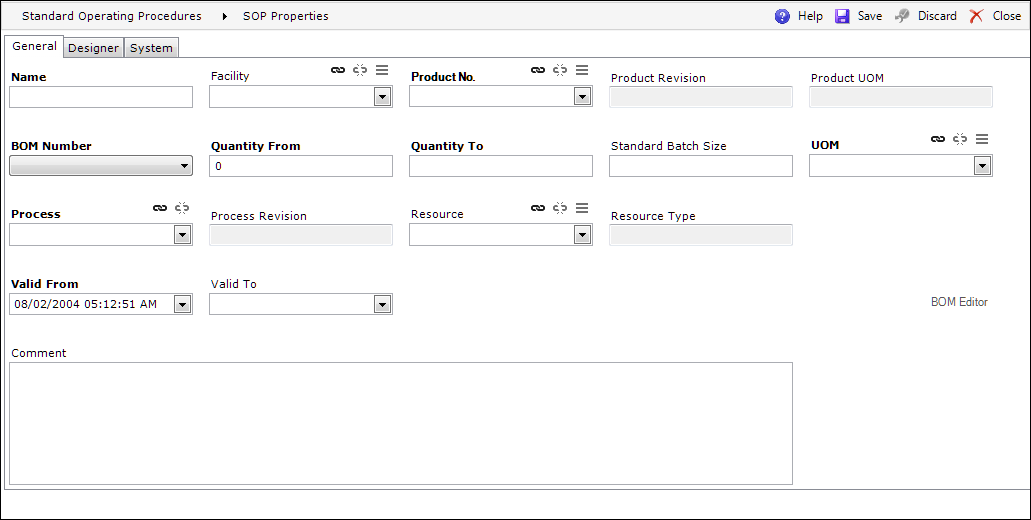
The General tab is used to create a new Standard Operating Procedure or to check the properties of an existing one.
Selecting the General tab will allow the user to enter the following properties:
| Field | Description |
| Name | The custom name of the SOP. |
| Facility | The Facility with which the SOP is associated. |
| Product No | The product number for which the SOP is created. |
| Product revision | The product revision number (automatically populated when the product is selected). |
| Product UOM | The product's UOM (automatically populated when the product is selected). |
| BOM number | The BOM number associated with the product. |
| Quantity from | The lower limit of the specified quantity to be inspected. |
| Quantity to | The upper limit of the specified quantity to be inspected. |
| UOM | The unit of measure used for the SOP. |
| Process | The Process to be associated with the SOP. |
| Process revision | The Process revision number (automatically populated when the Process is selected). |
| Resource | The identifier of the resource with which the SOP is to be associated. |
| Resource type | The resource type (automatically populated when the resource is selected). |
| Valid from | The date and time from which the SOP is valid. It is possible to enter overlapping SOPs with the same product, Facility, resource, range of quantity, and BOM for a given functional key (Explosion uses the solution with the latest start date). The date/time can be entered manually or selected from a drop-down calendar. |
| Valid to | The date and time SOP to which the SOP is valid. It is possible to enter overlapping SOPs with the same product, Facility, resource, range of quantity, and BOM for a given functional key (Explosion uses the solution with the latest start date). The date/time can be entered manually or selected from a drop-down calendar. |
| BOM Editor | The link to the BOM editor (displays the BOM used in the given SOP). |
| Comment | User comment, up to 2000 characters long. |